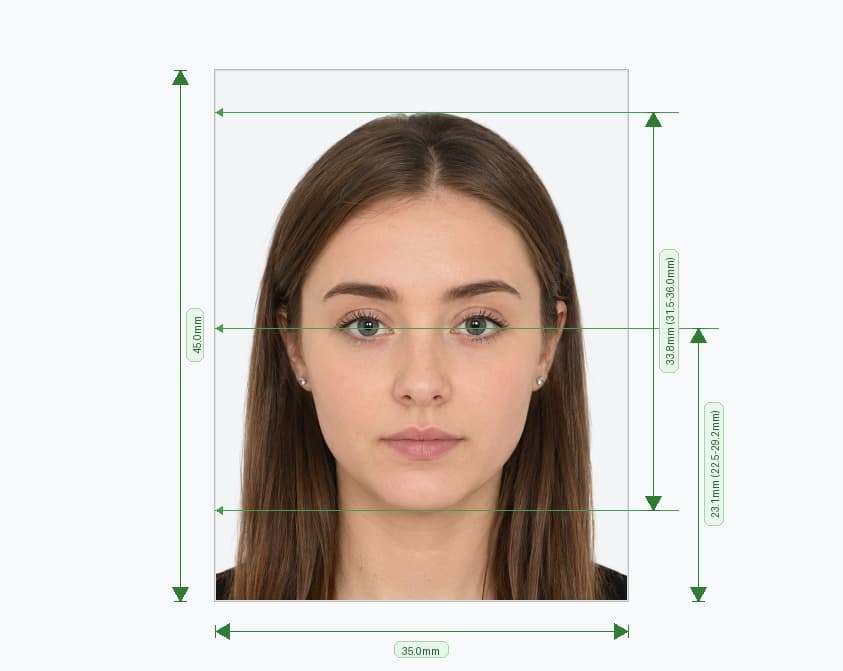
If you're renewing or applying for a British passport through the gov.uk online service, you need a digital photo rather than a printed one. HM Passport Office (HMPO) only accepts digital images for online applications, and that file has to clear a set of technical and presentation checks before your application can move forward. This guide sets out exactly what those checks are, using the figures gov.uk publishes rather than the DPI conversions that many other sites repeat by mistake.
What a UK Digital Passport Photo Actually Is
A UK digital passport photo is the image file you upload when you apply or renew online through gov.uk. It is a different product from the printed 45mm by 35mm photo used on paper applications. There is no millimetre measurement to hit, because the system crops and scales the photo for you. What matters instead is the pixel size, the file size, and how you appear in the shot, all of which HM Passport Office sets out on its official guidance.
The Official Requirements
Gov.uk states that a digital photo submitted with an online passport application must be:
- At least 600 pixels wide and 750 pixels tall
- Between 50KB and 10MB in file size
- Clear, in focus, and in colour
- Unaltered by computer software or filters
- Taken within the last month, even if your appearance hasn't changed
- Shot against a plain, light-coloured background with clear contrast between you and that background
- Free of red eye, shadows on your face or behind you, and any other people or objects in the frame
A word of caution here, since it trips up a lot of guides: 413 x 531 pixels is not the government's digital minimum. That number comes from converting the printed 35 x 45mm size at 300 DPI, which is a print calculation, not an upload rule. The figure gov.uk actually asks for online is 600 x 750 pixels, and using a smaller image risks a rejection you didn't need to have.
Beyond the technical checks, gov.uk also sets rules for how you appear. Face forward and look straight at the camera. Keep a neutral expression with your mouth closed, and keep both eyes open and clearly visible, with no hair falling across them. Head coverings are not allowed unless worn for religious or medical reasons. Glasses are best left off; if you need them, the lenses must be clear, with no glare, reflection, or frame shadow over your eyes.
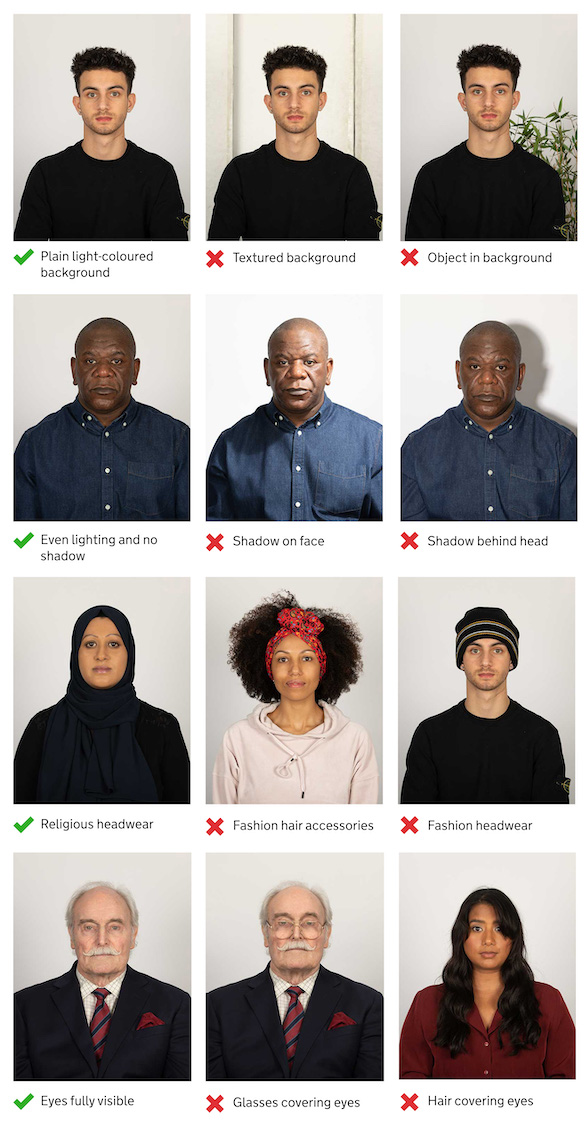
Official HMPO digital photo example. Source: gov.uk
Digital Photo vs Printed Photo
Applying online and applying by post lead to two different photo formats. The table below lines them up so you can see exactly where they differ.
| Feature | Digital Photo (Online) | Printed Photo (Paper Form) |
|---|---|---|
| Minimum size | 600 x 750 px | 45mm tall x 35mm wide |
| File rules | Colour image, 50KB to 10MB | Plain white photographic paper, no border, no creases |
| Head height | Cropped automatically by the system | 29mm to 34mm, crown to chin |
| Background | Plain, light-coloured | Plain cream or light grey |
| Quantity needed | 1 digital upload | 2 identical prints |
Taking Your Own Photo at Home
You do not need a studio to get a compliant photo. You can take it yourself on a phone or camera during the application, though gov.uk notes that photos from a booth or shop are more likely to be approved than ones taken on your own device. If you decide to do it yourself, a few things make the difference between a photo that passes first time and one that gets sent back:
- Stand facing a plain, light-coloured wall, in even natural light. Avoid harsh overhead lighting, which casts shadows under the eyes and chin.
- Ask someone else to take the photo for you. HMPO expects self-submitted digital photos to be taken by another person, not as a selfie.
- Frame your head, shoulders, and upper body in the shot. Do not pre-crop the image yourself; the system does this automatically once you upload it.
- Remove hats, scarves, and headphones unless you wear them for religious or medical reasons.
- Keep a neutral expression, with your mouth closed and both eyes open and visible.
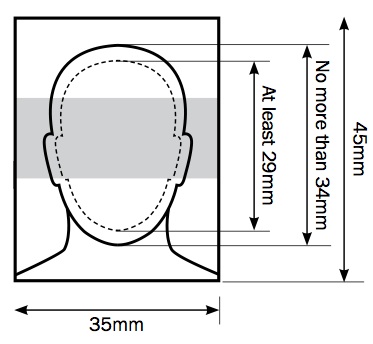
HMPO framing guidance for head, shoulders, and upper body. Source: gov.uk
Two Ways to Get Your Digital Photo
Gov.uk gives you two routes into the online application, depending on how you'd rather work.
Get a Photo Code From a Booth or Shop
Before you start your application, visit a photo booth or shop and ask for the option that gives you a code along with your prints. You then enter that code during the online application, and the digital photo linked to it is added to your file automatically. This is the route gov.uk suggests if you want the highest chance of first-time approval.
Upload a Photo From Your Own Device
If you would rather skip the shop, you can take and upload a photo directly during the application. Gov.uk's online service runs an automated check on the image as part of the application itself, flagging anything that falls outside the rules above so you can retake it before you submit.
Photos for Babies and Young Children
Gov.uk relaxes a few rules for younger applicants, since it's rarely practical to get a baby to hold a neutral expression on command:
- Children must be photographed alone, with no toys or dummies in shot.
- Children under 6 don't need to look directly at the camera or hold a plain expression.
- Babies under 1 don't need their eyes open. A hand can support their head, as long as the hand itself is out of frame.
- Babies under 1 should lie on a plain, light-coloured sheet, photographed from above.
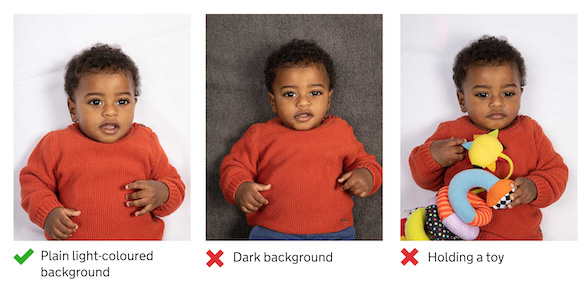
Official HMPO digital photo example for children. Source: gov.uk
Why Digital Photos Get Rejected
Most rejected digital photos fail for one of a handful of reasons, and nearly all of them are avoidable once you know to look for them:
- The image falls below the 600 x 750 pixel minimum, or has been compressed so heavily that detail is lost.
- The background isn't plain or light-coloured; patterned, dark, or cluttered backgrounds all fail.
- Shadows fall across the face or appear behind the subject.
- Glasses cause glare or reflection, or the frames cover part of the eyes.
- The expression isn't neutral; smiling or an open mouth are both common culprits.
- The photo is older than one month.
- A head covering appears without a religious or medical reason behind it.
Getting the File Right Before You Upload
Most modern phone cameras produce images well above 600 x 750 pixels by default, so the pixel minimum rarely trips people up. The file size band of 50KB to 10MB causes more confusion, mainly because phones now default to formats and compression settings that can push a single photo close to that upper limit, or occasionally under the lower one if heavy compression is applied. Before you upload, check the file's properties on your phone or computer rather than guessing. If your image comes out too large, exporting it again at a slightly lower quality setting, rather than resizing the dimensions, keeps you within the 600 x 750 pixel minimum while bringing the file size down.
Frequently Asked Questions
Avoid Passport & Visa Photo Rejections
Our automatic AI tool fixes background shadows, crops to exact millimeter specs (2x2" or 35x45mm), and guarantees 100% biometric compliance.
Create & Fix My Photo Now